
This post is intended for people already using Volume Scroller for YouTube™. Haven’t installed it yet? It’s easy to get started: just visit the Chrome Web Store or Mozilla Add-ons, click “Add to Chrome” or “Add to Firefox,” and follow the prompts. When it’s finished, the extension icon will appear next to your address bar. For extra information on the extension, check out our about page.
Recently installed Volume Scroller for YouTube™, and ready to customise it to your liking? This guide covers all the options the extension has to help you do that.
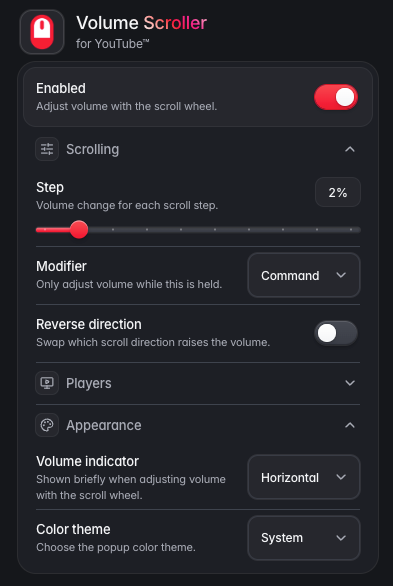
Click the extension icon next to your address bar to open the popup menu. There, you’ll find several ways to personalise your experience. Let’s go through each setting and see what it does.
Core Control
Sometimes you just want a quick way to turn everything on or off.
- Enabled: This switch turns the extension on or off. If you want to go back to your browser’s default behaviour, just turn it off.
Scrolling Customised to You
Everyone has their own way of scrolling.
- Step (1% to 10% slider): By default, each mouse wheel tick increases the sound by 2%. Want faster control? Slide it up. Prefer smaller adjustments to get the sound just right? Lower it to 1%.
- Modifier: If you sometimes change the volume by accident while reading comments, try using a modifier key. You can set the extension to work only when you hold down a key, such as Alt, Option, Ctrl, or the right mouse button. You can pick whichever key works best for your habits. By default, no modifier is set, but it’s worth trying this option.
- Reverse Direction: If your computer uses natural scrolling, the default setting might feel backwards. Turn this on to switch which way increases or decreases the volume.
Player Options
YouTube videos show up on many different websites.
- Embedded players: Check this box to make your scroll wheel work on YouTube videos embedded on blogs, news sites, and forums. It keeps the experience consistent wherever you go. Please note that not all embedded players are supported, if a website uses a non-standard player or customises YouTube embeds, the extension may not work as expected.
- Remember volume: If you’re tired of YouTube resetting your volume to 100% every time, this feature can help. Keep it turned on to save your preferred volume level between sessions.
Appearance
If you like customising your desktop, you probably want your extensions to match, too.
- Volume indicator: When you scroll, a small indicator pops up to show your volume level. You can choose to display it horizontally (the default) or vertically.
- Colour theme: Choose Dark mode, Light mode, or set it to System to match your computer’s settings. This only changes the extension popup, not YouTube’s appearance.
We hope this quick tour helps you set things up just the way you like. Enjoy watching! If you have more questions, check our FAQ or contact us on the support page.